Forgetting your password is a common issue, but resetting it is a breeze. Follow this simple guide to regain access to your account quickly.
Step 1: Go to the Password Reset Page
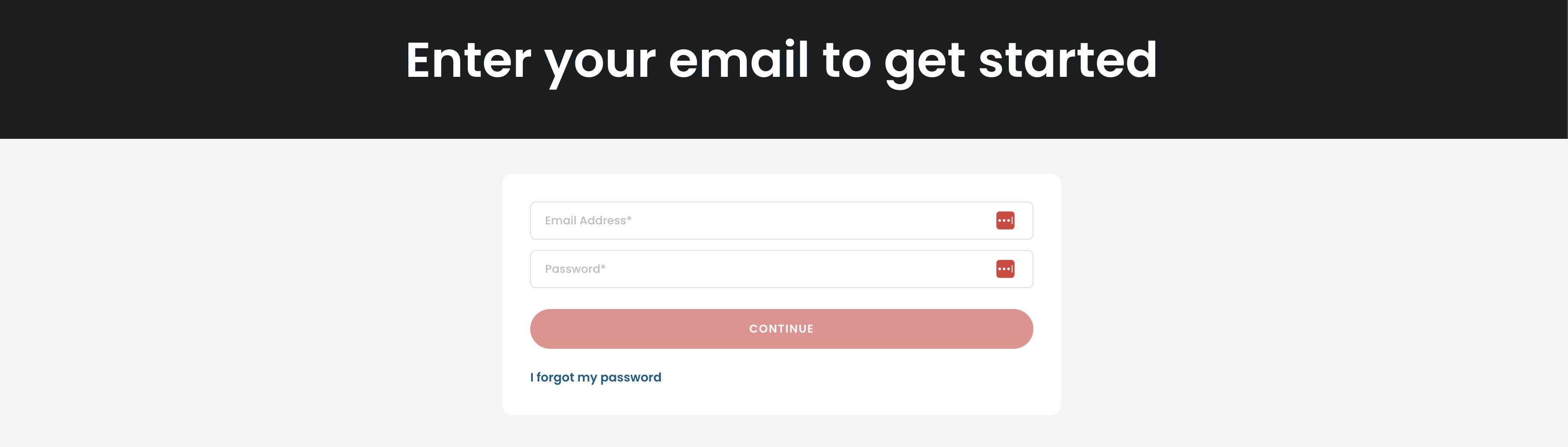
If you've forgotten your password, start by navigating to the password reset page. Enter your email address in the provided field and click "Continue".
Step 2: Check Your Email
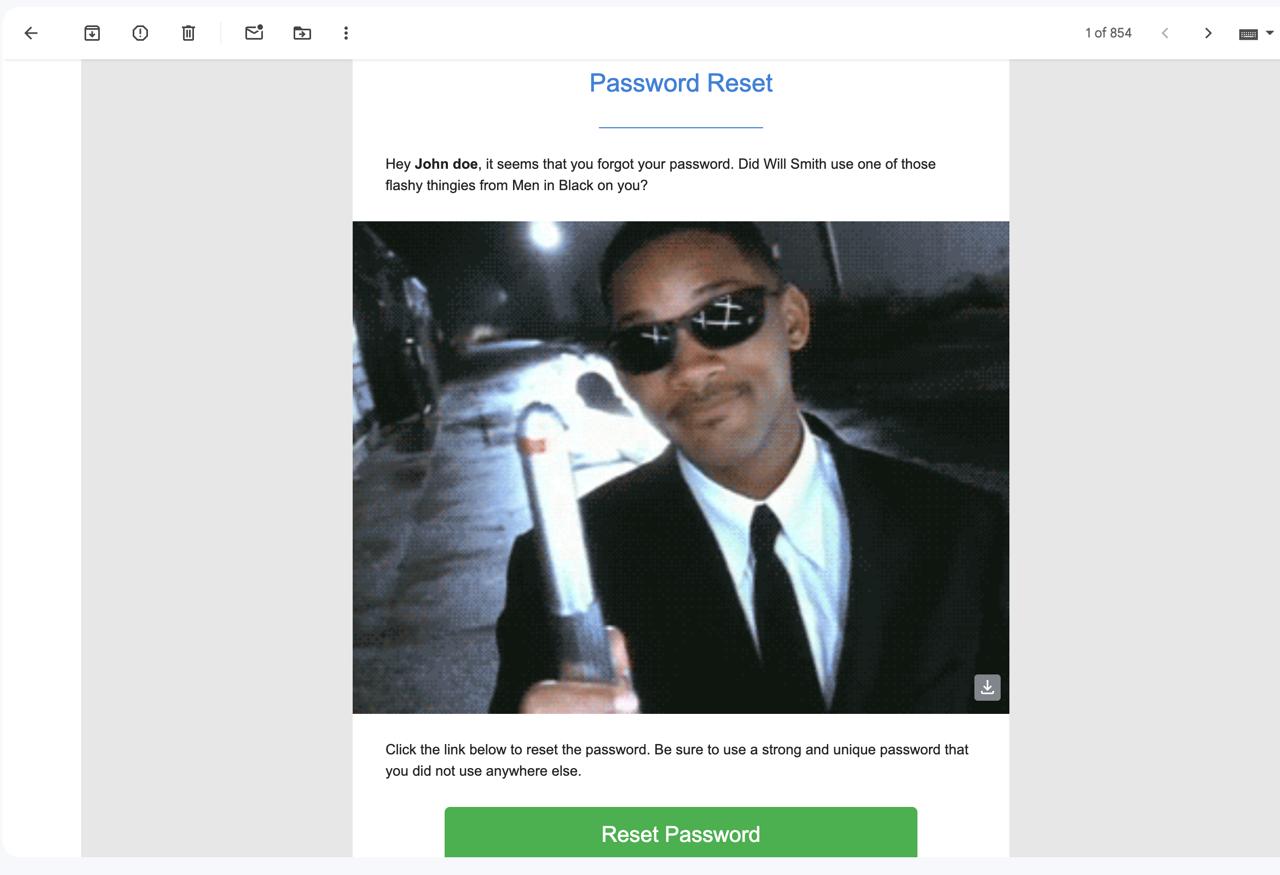
You will receive an email with instructions to reset your password. Look out for an email with the subject "Password Reset". The email may include a humorous GIF to lighten the mood, as shown below.

Step 3: Enter Your New Password
Click the link in the email to access the password reset form. Enter a new strong and unique password, then confirm it. Submit the form, and your password will be updated.
Tips for a Secure Password
- Use at least 8 characters with a mix of letters, numbers, and symbols.
- Avoid using the same password across multiple sites.
- Consider using a password manager for added security.
With these steps, you'll regain access to your account in no time. If you face any issues, feel free to contact support for assistance.