Follow this guide to learn how to edit your order information on the dashboard. Whether you need to update personal details or manage your subscriptions, these steps will help you navigate the process efficiently.
Step 1: Access the Dashboard
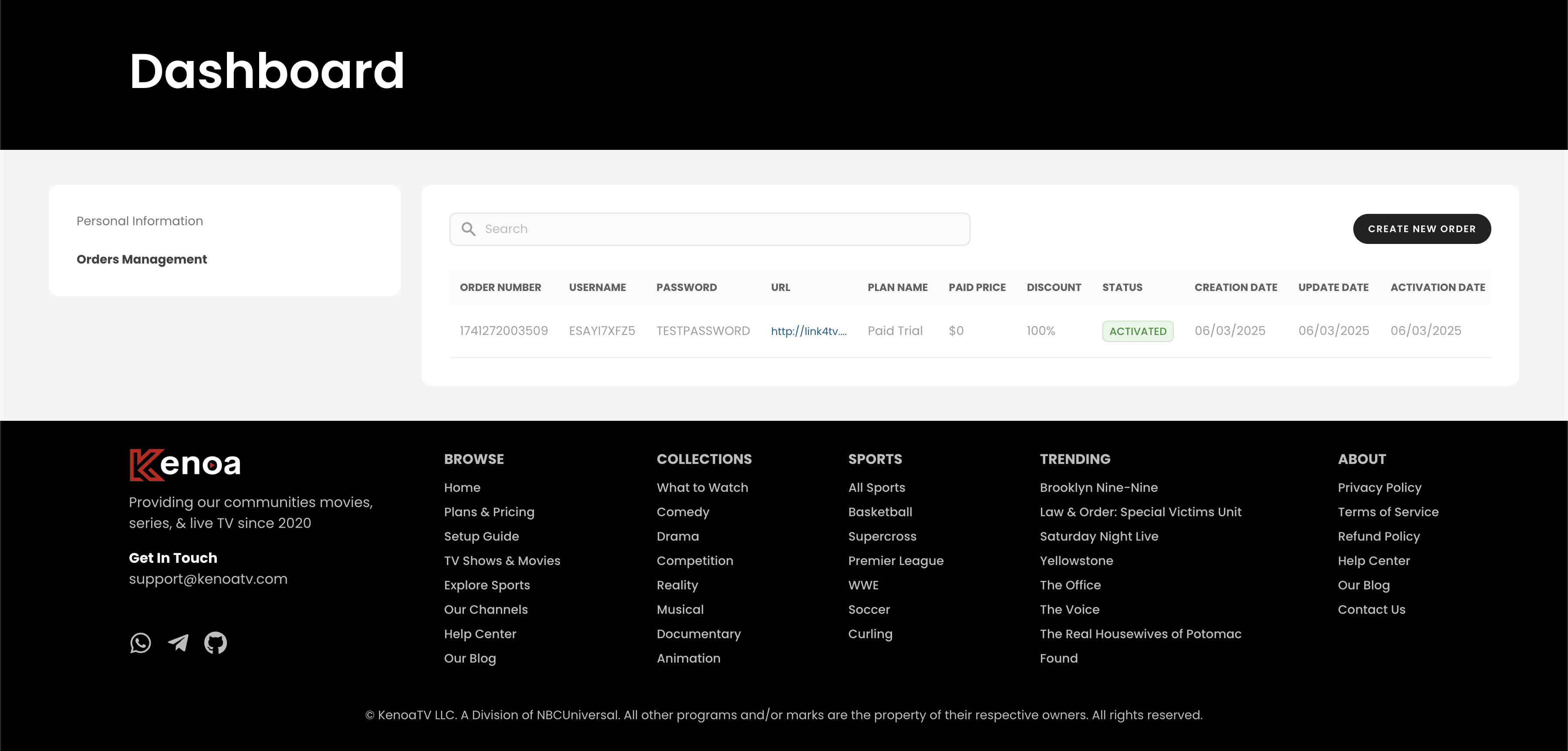
Log in to your account and navigate to the dashboard. The dashboard provides an overview of your personal information and order management options. Click on "Orders Management" to begin editing your order details.
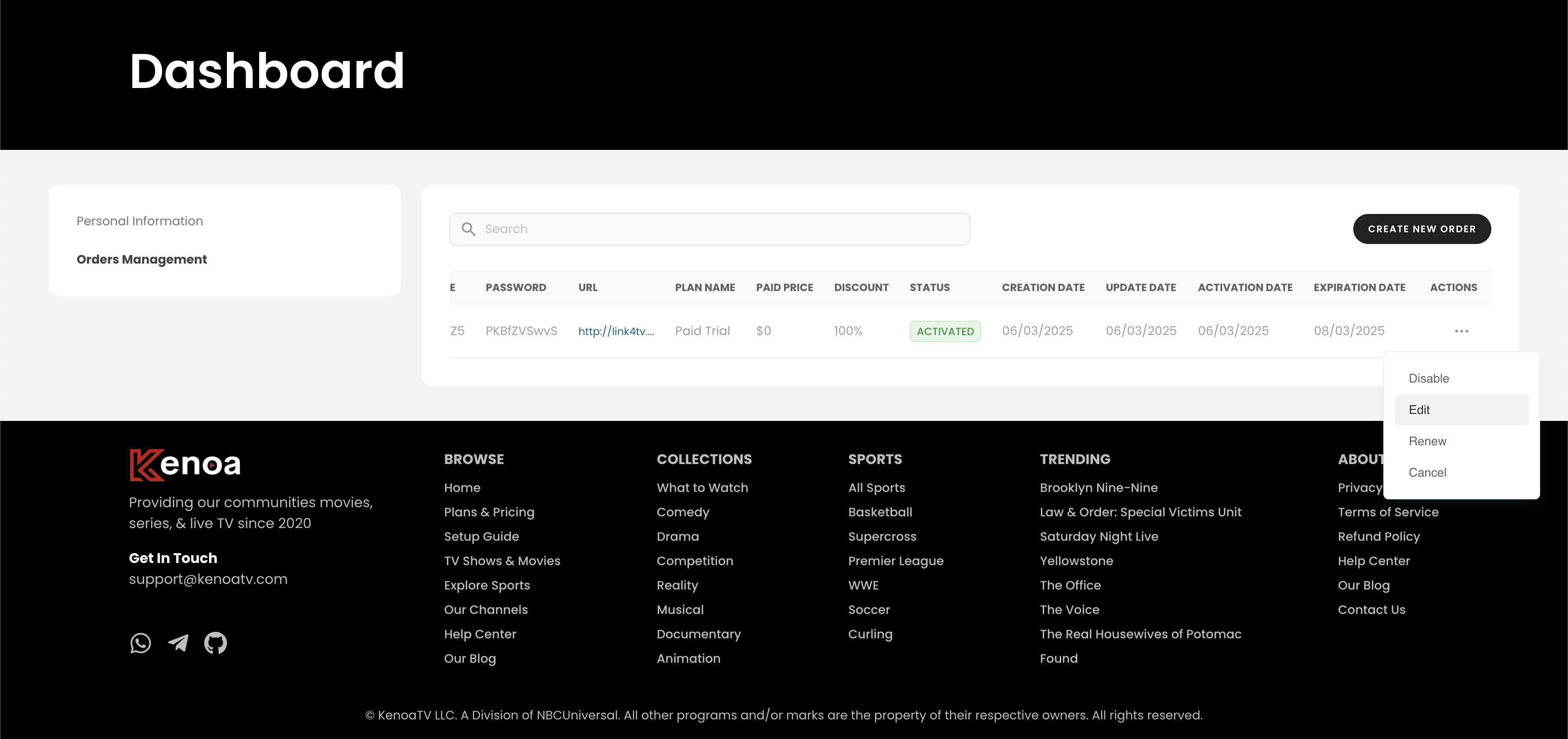
Step 2: View Your Order Details
In the "Orders Management" section, locate the order you wish to edit. Click on the "Details" tab to view the current information, including username, password, package, and expiration date. This step allows you to review the existing order before making changes.
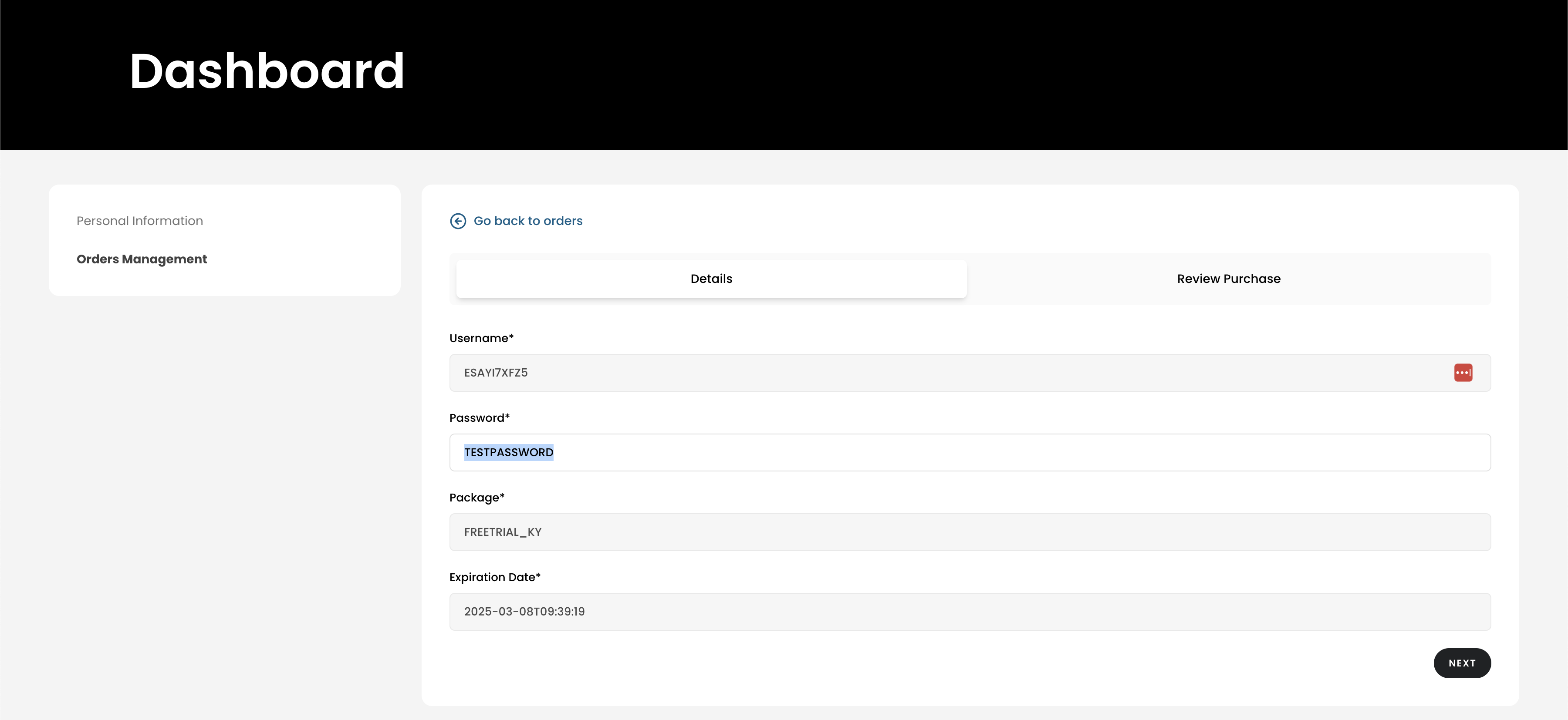
Step 3: Edit the Order Information
To edit your order, select the order from the list and choose the "Edit" option from the actions menu. Update the necessary fields such as username, password, or package details. Ensure all changes are accurate before proceeding.
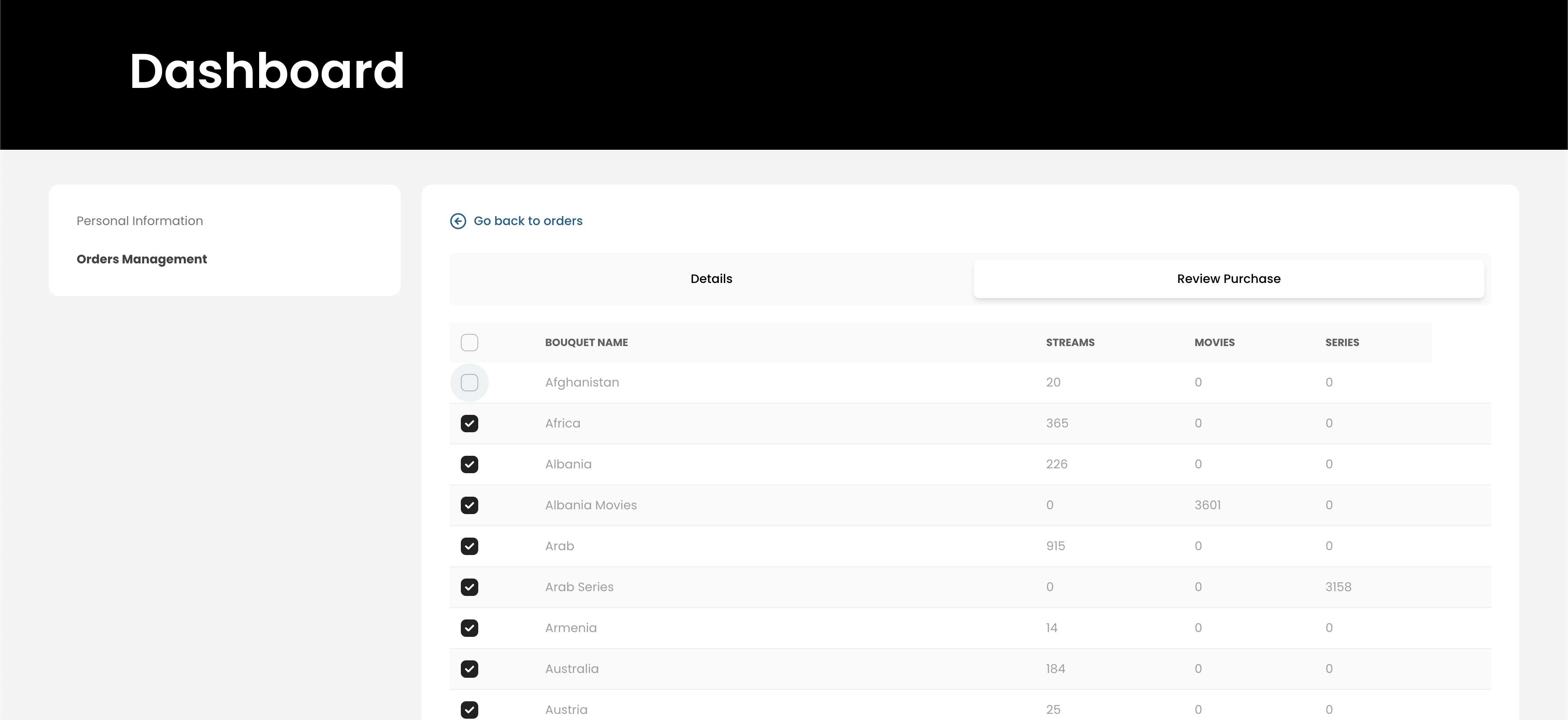
Step 4: Review Your Changes
After editing, review the updated order details in the "Review Purchase" section. Verify that all modifications, including the new expiration date or package, are correct. This step ensures no errors before saving.
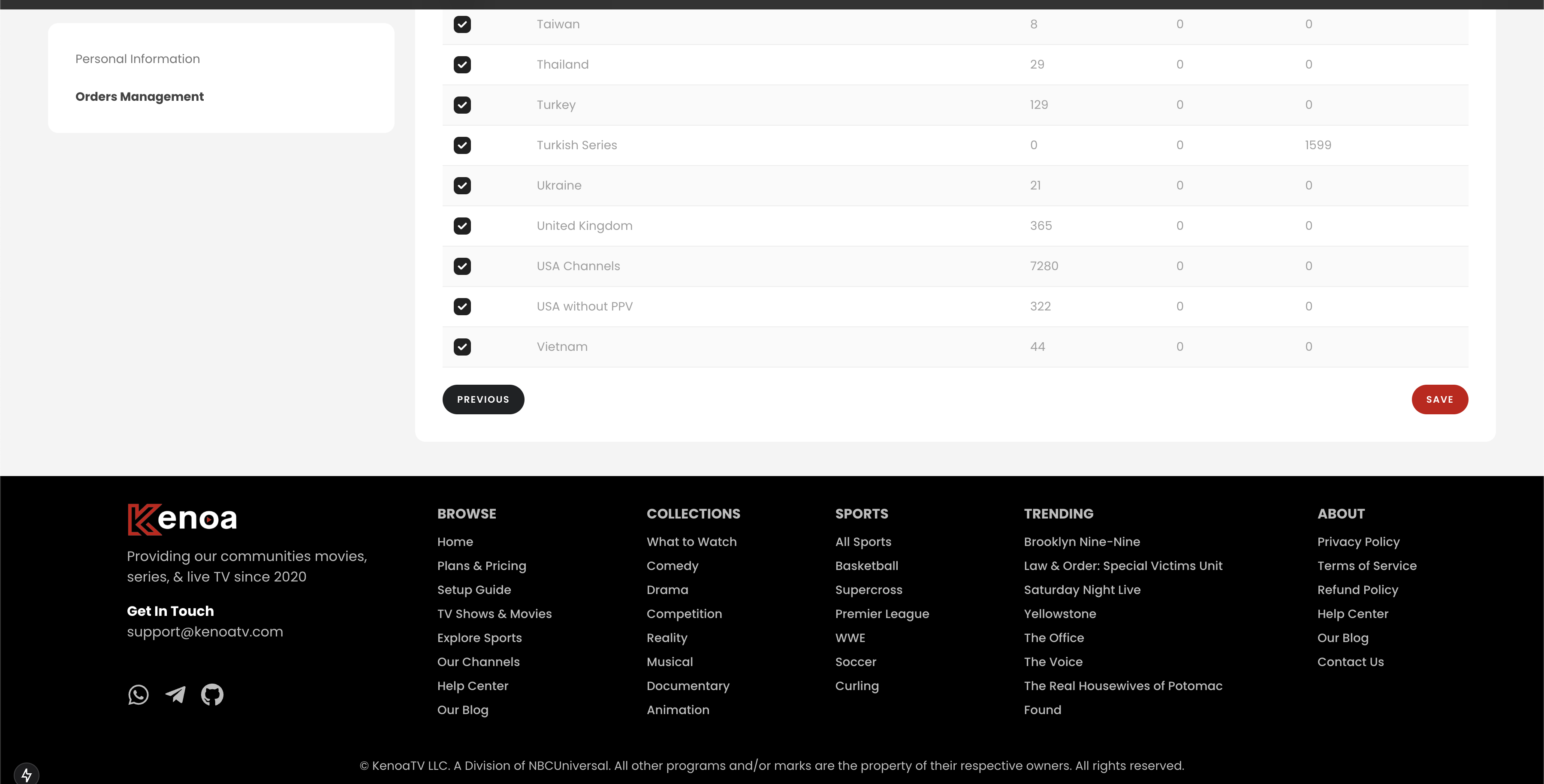
Step 5: Save Your Changes
Once you’ve reviewed the changes, click the "Save" button to apply them. The system will update your order information, and you’ll see the new details reflected in the dashboard. A confirmation may be sent via email for your records.
Tips for a Smooth Experience
- Double-check your edits before saving to avoid mistakes.
- Contact customer support if you encounter issues during the process.
- Keep your login credentials secure after updating.