Follow this guide to learn how to disable your order on the dashboard. This process allows you to deactivate an active subscription when needed. Ensure you review all steps carefully.
Step 1: Access Orders Management
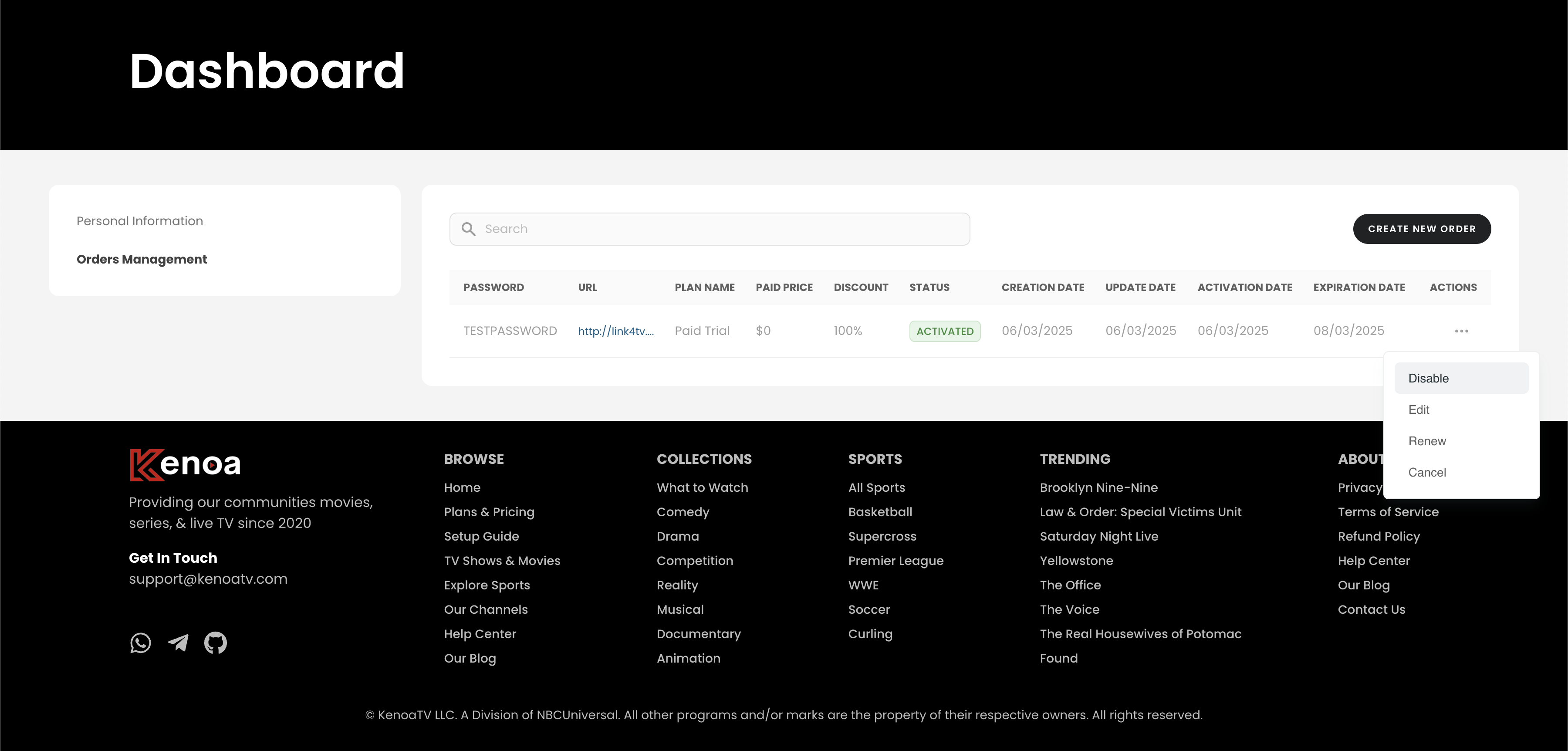
Log in to your account and navigate to the dashboard. Locate the "Orders Management" section on the left sidebar to view your active orders. This section displays all your subscriptions, including their status and details.
Step 2: Disable Your Order
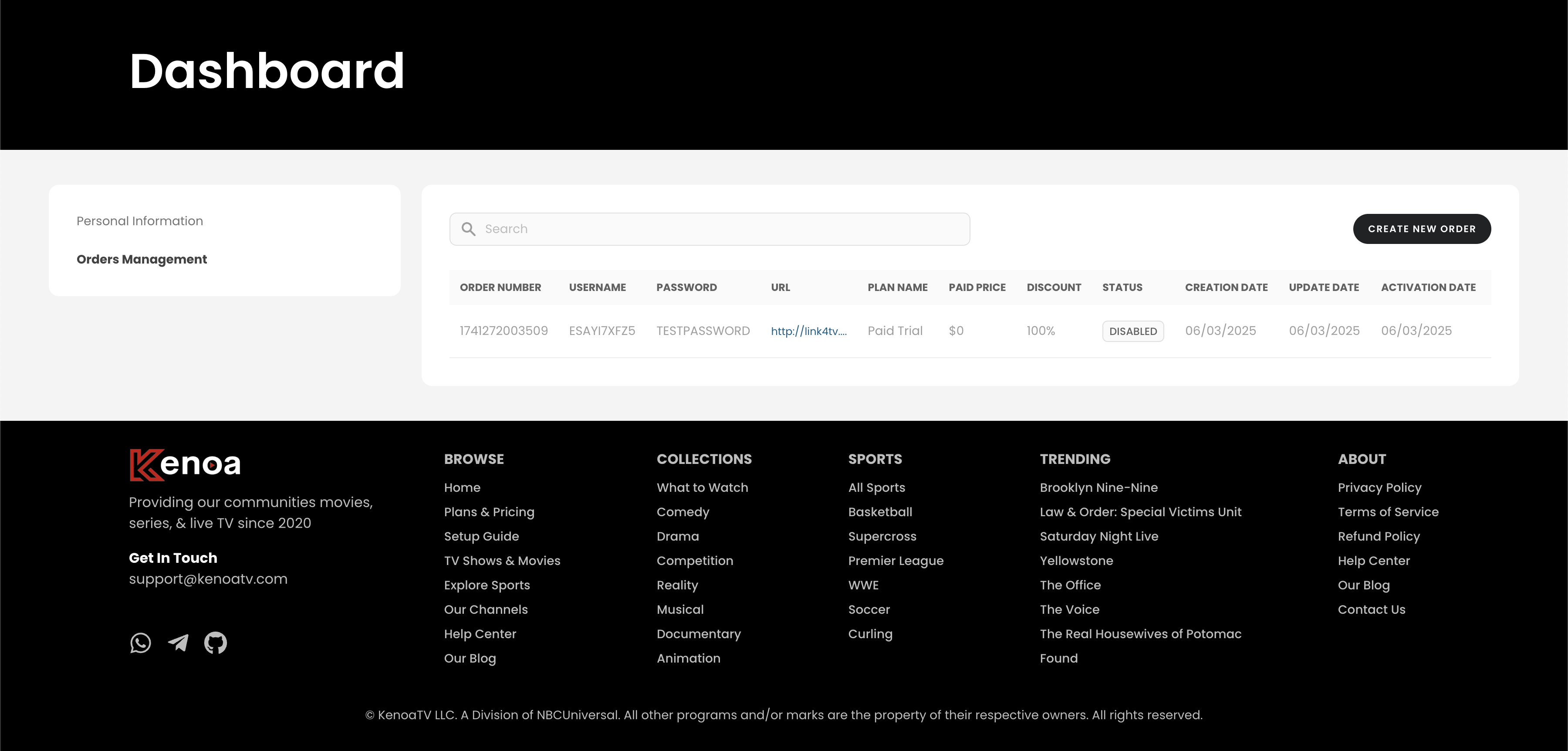
In the "Orders Management" section, find the order you want to disable. Click on the actions menu (three dots) next to the order, then select "Disable" from the dropdown menu to deactivate the subscription.
Tips for a Smooth Experience
- Ensure you select the correct order to avoid disabling the wrong subscription.
- Contact customer support if you encounter issues during the process.
- Check your email for a confirmation after disabling the order.