Follow this guide to learn how to cancel or refund your order on the dashboard. This process allows you to terminate an active subscription and request a refund if eligible. Follow these steps to complete the cancellation and refund process successfully.
Step 1: Select the Cancel Option
Log in to your account and navigate to the dashboard. Go to the "Orders Management" section, find the order you wish to cancel (which may show an "Activated" or "Renewed" status), and click the actions menu (three dots) next to it. Select "Cancel" from the dropdown menu to initiate the cancellation process.
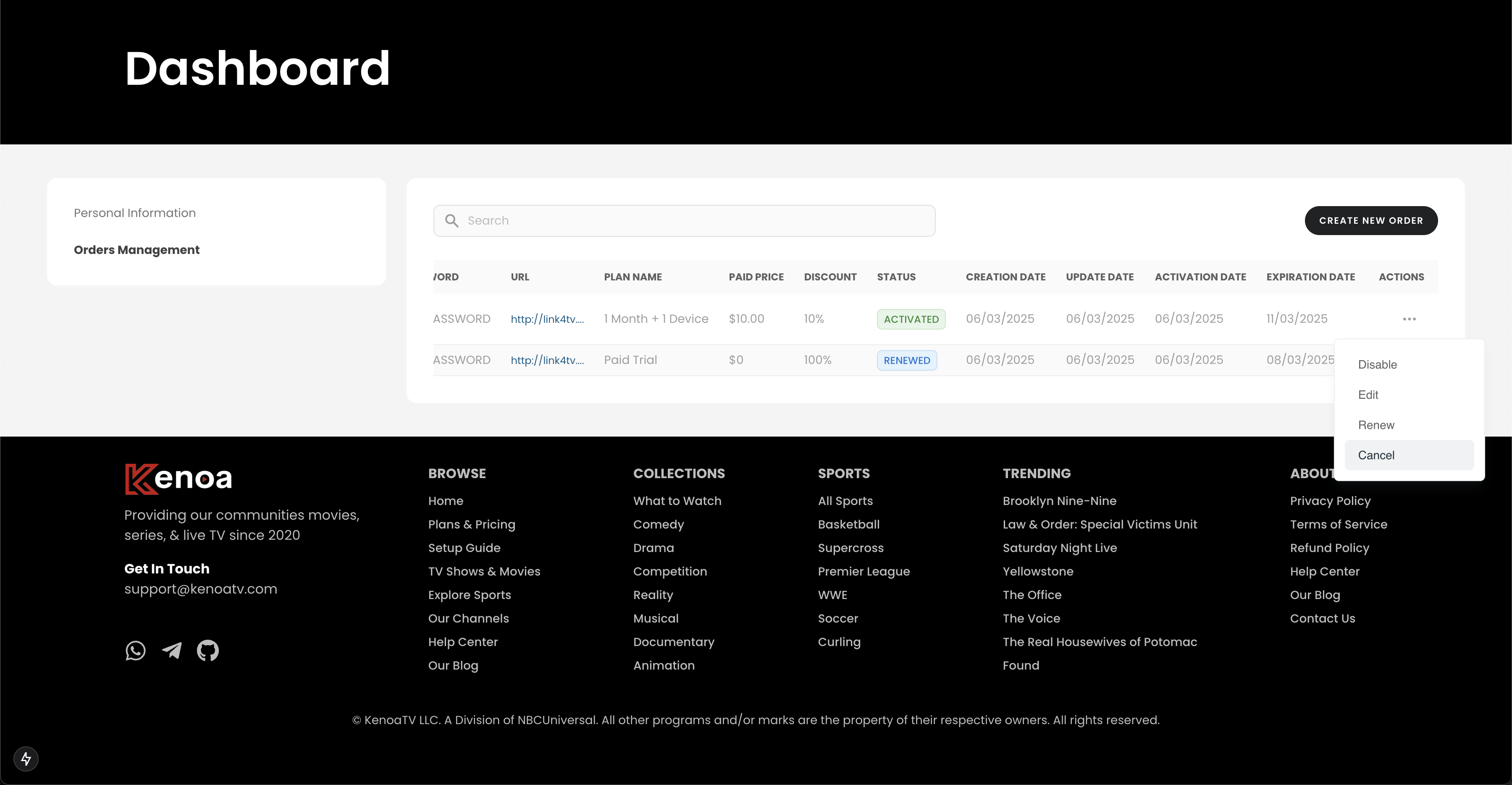
Step 2: Confirm the Cancellation
A confirmation popup will appear, asking, "Are you sure you want to cancel this order?" It will note that you’ll be refunded 50% if less than 50% of the subscription has been consumed. Click "Yes" to confirm the cancellation, or "No" to cancel the action.
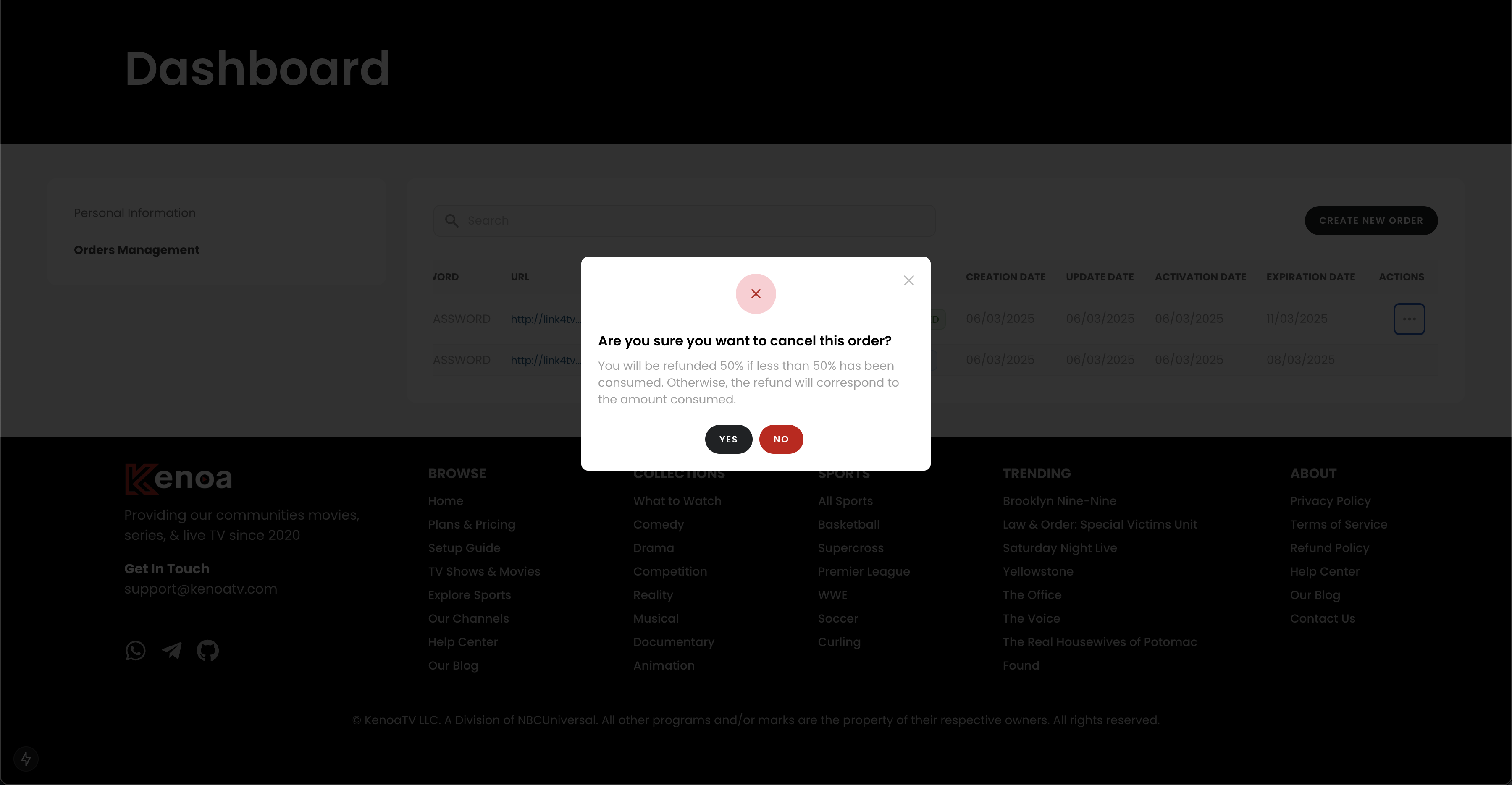
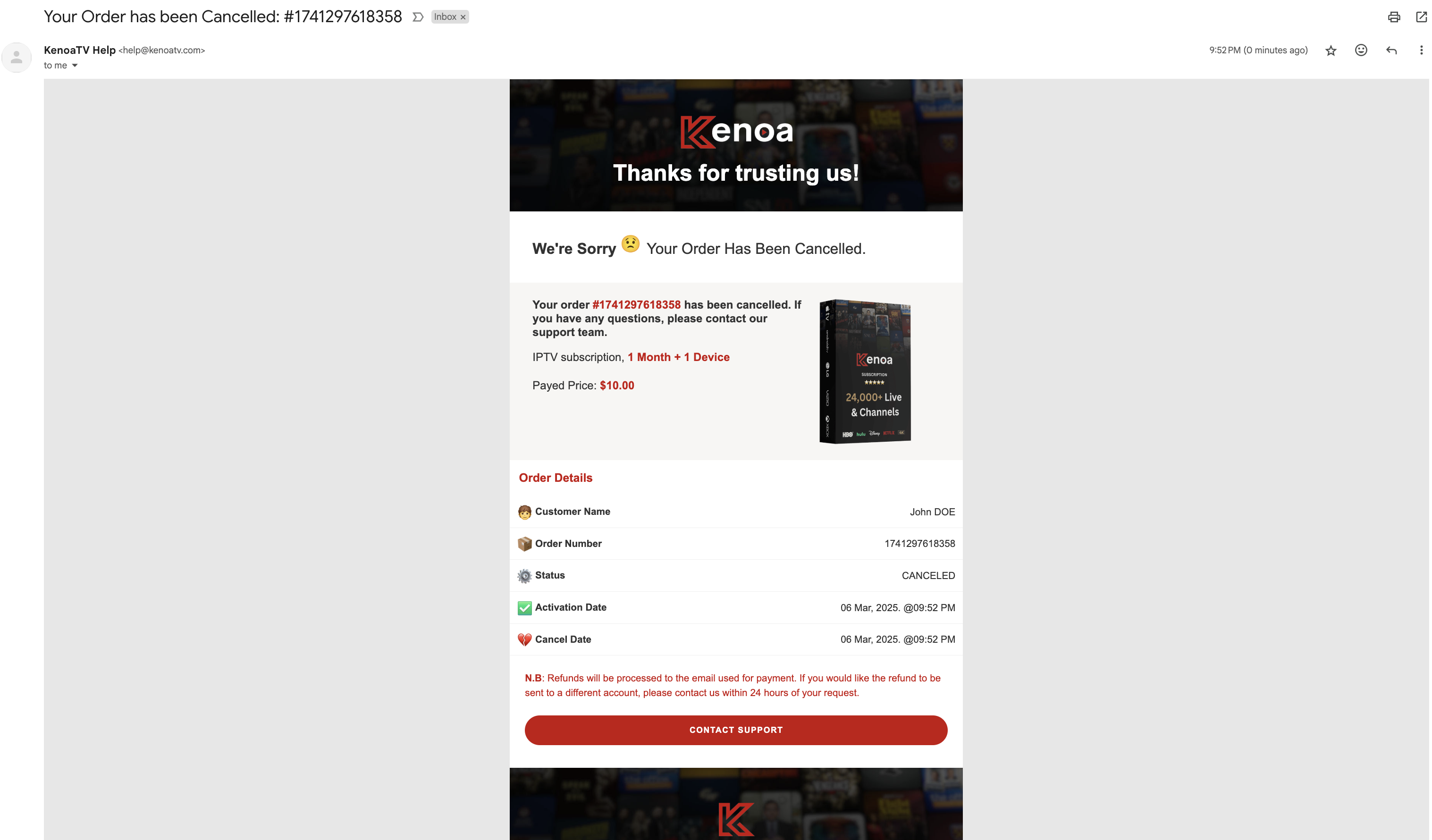
Step 3: Receive Cancellation Email
Check your inbox for a cancellation confirmation email from KenoaTV Help. The email will confirm that your order (e.g., #1741297618358) has been canceled, provide order details (e.g., 1 Month + 1 Device, paid price $10.00), and advise you to contact support if you have questions.
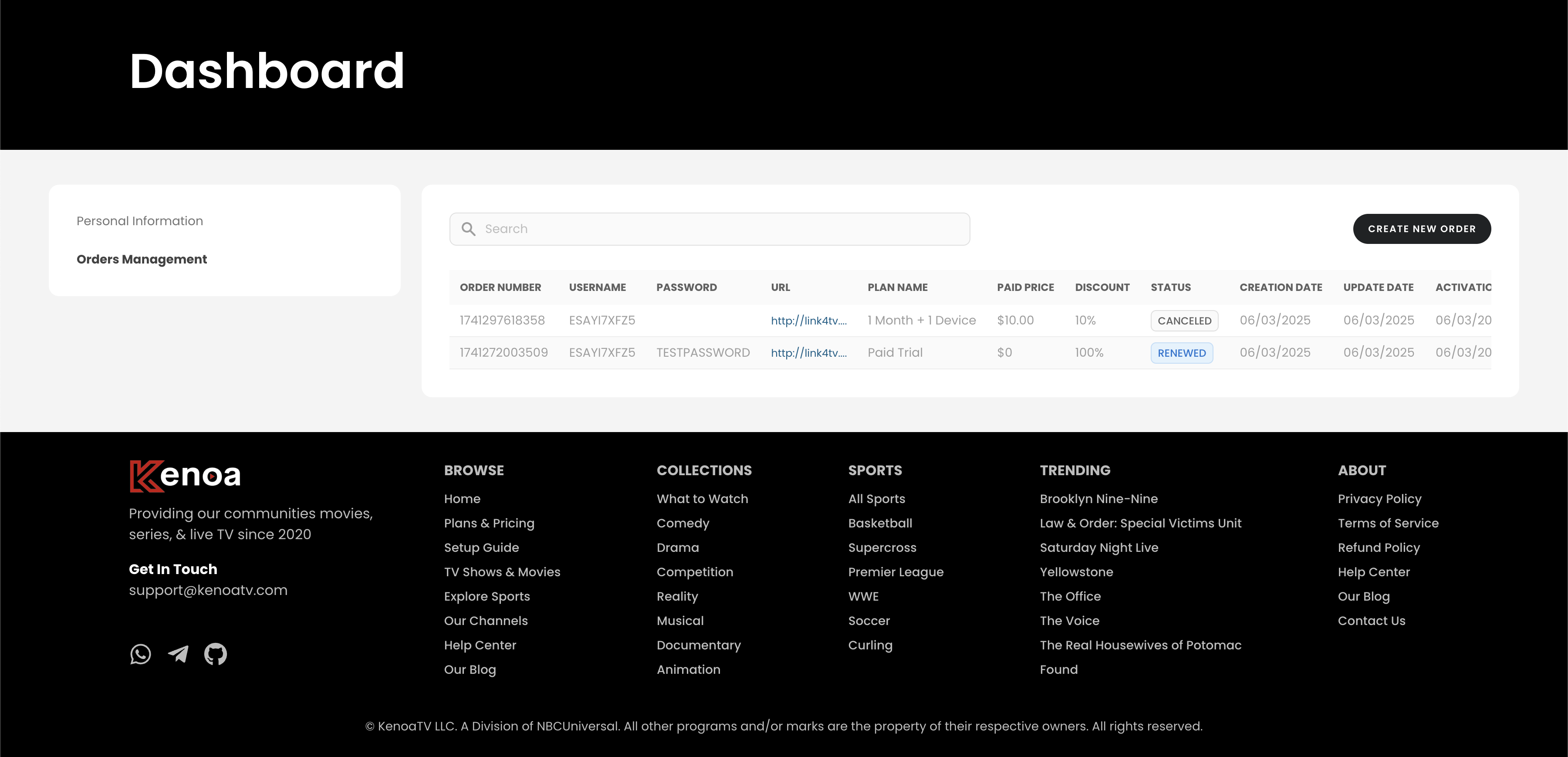
Step 4: Verify Cancellation Status
Return to the "Orders Management" section on the dashboard to confirm the cancellation. The order status should now show "Canceled," indicating that your subscription has been successfully terminated. Verify the updated status to ensure the process is complete.
Step 5: Request a Refund
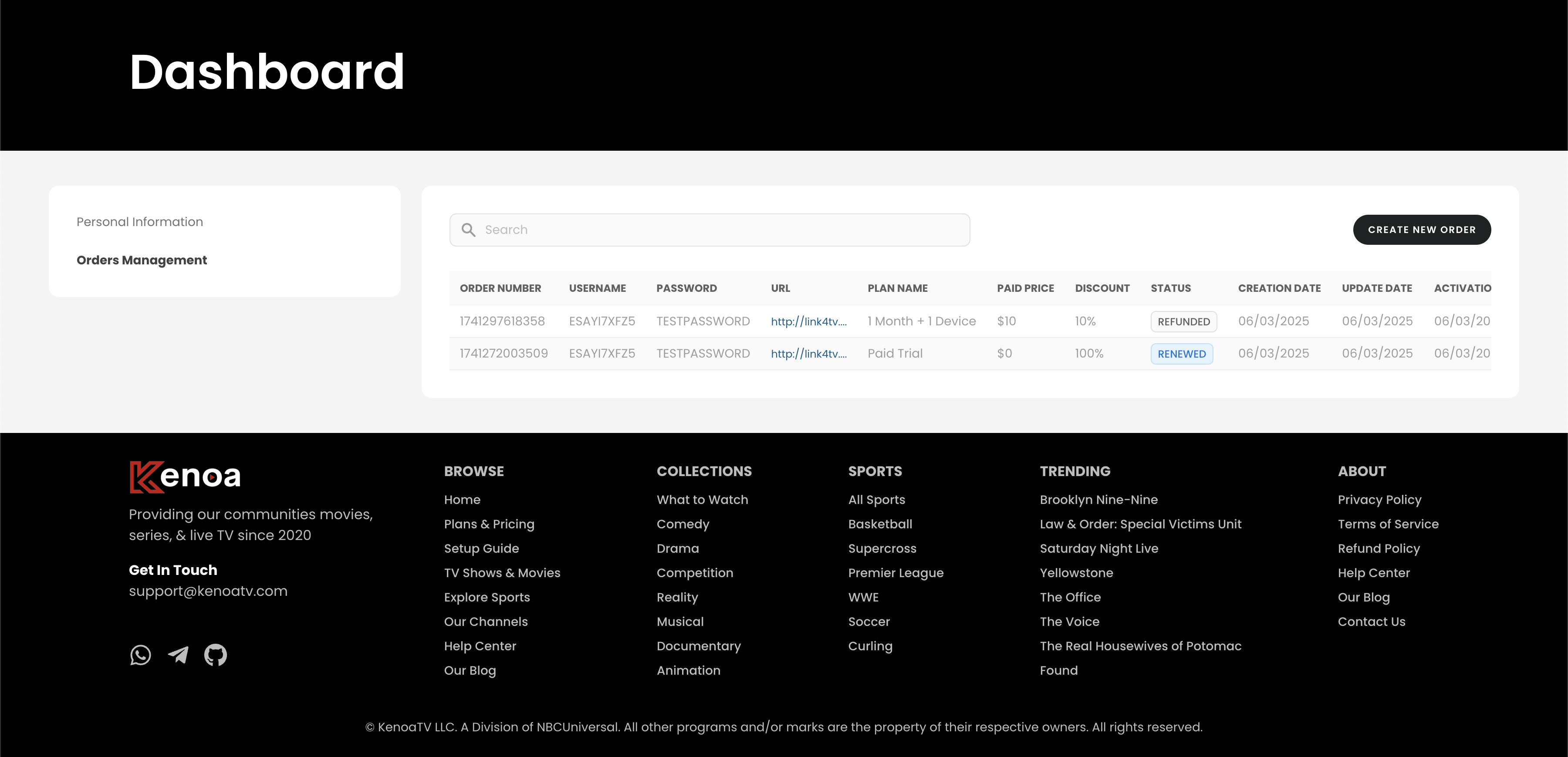
After cancellation, if eligible for a refund (e.g., less than 50% of the subscription consumed), the refund process will automatically begin. The dashboard will show the order status as "Refunded," indicating that a refund has been initiated based on the cancellation policy.
Step 6: Receive Refund Confirmation Email
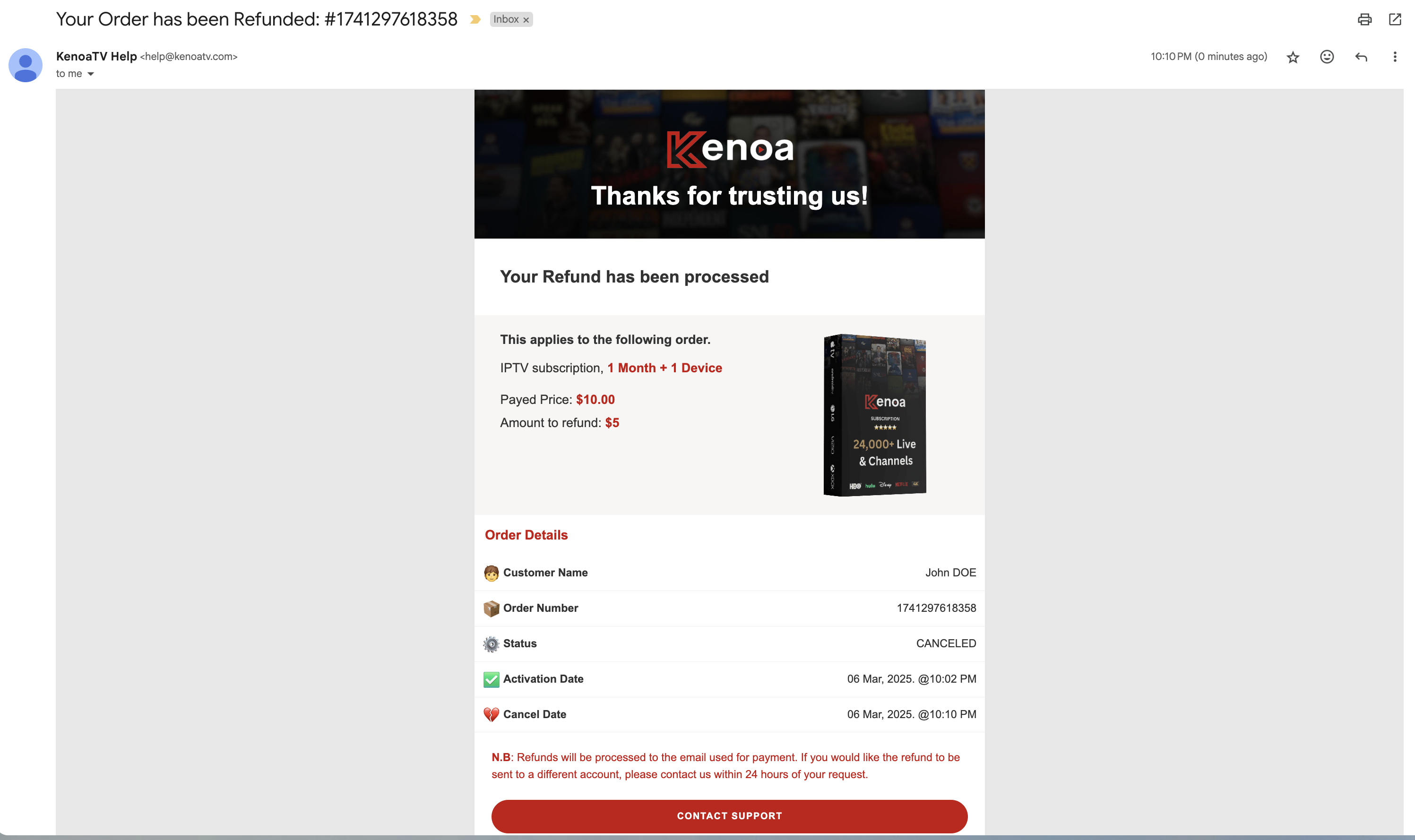
Check your inbox for a refund confirmation email from KenoaTV Help. The email will confirm that your refund for the order (e.g., #1741297618358) has been processed, detailing the original paid price (e.g., $10.00) and the refund amount (e.g., $5.00). It will also note that refunds are processed to the email used for payment.
Tips for a Smooth Experience
- Review the refund policy to understand eligibility before canceling.
- Contact support if you don’t receive the cancellation or refund emails within a few minutes.
- Check your payment account to confirm the refund has been processed.